Smart Query
The Smart Query Stage is used to read the Namespace . The stage queries all or part of a namespace, filters, and transforms the results to make pipeline processing easy. The stage uses JSONata syntax to query the namespace.
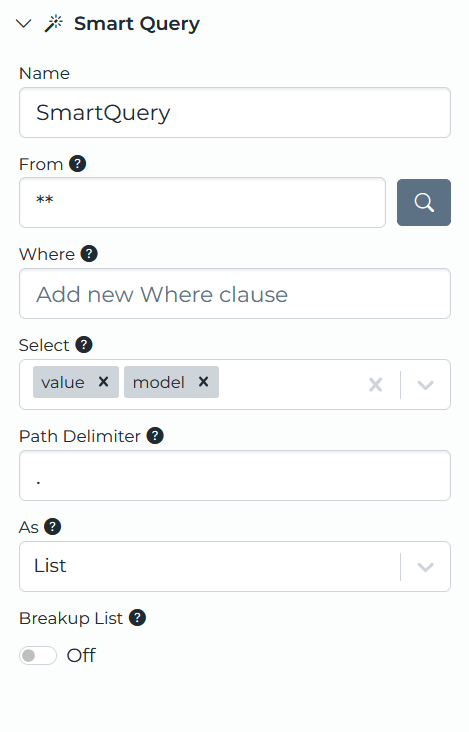
From
Controls what part of the namespace is queried. This is similar to a SQL FROM clause, but using JSONata syntax. Below are some examples.
| From Query | Description |
|---|---|
| Boston.Paint.Line1.* | This is the configuration Namespace , and gets Line1 and all it’s children. |
| Boston.Paint.Line1.** | Gets Line1 and all of its children, recursively. |
| HighByte.Instance.* | This is the default namespace, and represents the HighByte configuration. This queries all Instances in the configuration. |
| ** | Get the root of the namespace and all child nodes, recursively. |
| Boston.Paint.**[metadata.Zone = "A"] | Gets Paint and all of its children, recursively, keeping only the nodes tagged Zone = A. |
To populate the From field using a browsing experience, click on the magnifying glass icon located to the right of the field.
Where
Applies conditional logic to the From clause to filter the query. This is similar to a SQL WHERE clause. For example, you can filter for all instances modeled by Conveyor, or all Instances that have an attribute named state set to true.
| Where | Description |
|---|---|
| *[model="Conveyor"] | Select all instances modeled after Conveyor. |
| *[value.state=true] | Select all instances with an attribute named state set to true. |
| *[value.state=true and model="Conveyor"] | Logically combine both queries using and/or. |
| *[metadata.Zone = "A"] | Select all nodes tagged with the metadata key Zone set to A. |
Node
metadata
is available to both the From and Where clauses as metadata.<key>. To insert a filter without typing it, click the tag icon to the right of the Where field and pick a key/value pair from the list of metadata currently in use in the namespace. The filter is combined with anything already in the clause using and.
Select
Controls what data is returned by the query. This is similar to a SQL SELECT clause, except it cannot be used to return specific attributes of an Instance, only the full value. The available options are described below.
| Select | Description |
|---|---|
| value | Returns values in the namespace, similar to the test read results. |
| path | Returns the paths in the namespace. For example, [Boston.Paint, Boston.Paint.Line1, ..]. |
| name | Returns the name of the source. For a modeled source this would be the Instance name. |
| model | Returns the name of the model for each node, and an empty string if the data isn’t modeled. |
| metadata | Returns the node’s
metadata
tags as an object under _metadata. |
Path Delimiter
Controls the Delimiter used when building the path from the namespace. By default this is a “.” (ex. Boston.Paint).
As
Controls the shape of the resulting read. For some workflows, hierarchy is required, and for others an array of values with a path attribute is preferred.
Note the difference between “Inline” and non-inline is the inclusion of a “value” node for attributes. See below examples.
| As Option | Description |
|---|---|
| Hierarchy | The reads return the full hierarchy of the namespace. |
| List | Returns an array of all the nodes. |
Handle No Data
A query can run successfully and match nothing. By default, when the query returns no results the stage stops the pipeline without producing an error, and no downstream stages run.
Enable the Handle No Data setting to expose the No Data path. When the setting is enabled and the No Data path is connected, an empty query result sends an event down the No Data path instead of stopping the pipeline. The event carries the value that entered the Smart Query Stage, not the query result, so downstream stages can act on the original event when the query matches nothing.
If Handle No Data is disabled, or it is enabled but the No Data path is not connected, the stage stops the pipeline as described above. Disabling the setting hides the No Data path and removes any link drawn from it.
Smart Query Metadata
The event generated by the stage includes metadata for path, name, and model under event.metadata.query, along with the node’s
metadata
tags under _metadata. This is useful in cases where the metadata isn’t needed
in the payload, but it is needed in the event to control the topic path the write occurs on, buffering, or other data flow needs.
Smart Query Examples
For the below examples, assume the Namespace looks as follows. Conveyor is based on the Conveyor model, and Tank on the Tank model.
{
    "Boston": {
        "Paint": {
            "Line1": {
                "Conveyor": {
                    "speed": 100,
                    "state": 50
                },
                "Tank": {
                    "level": 50
                }
            }
        }
    }
}
Example As results
For these examples, Select is set to value only.
As: Hierarchy
{
	"Boston": {
		"Paint": {
			"Line1": {
				"Conveyor": {
                    "speed": 100,
                    "state": 50
				},
				"Tank": {
                    "level": 50
				}
			}
		}
	}
}
As: List
[
	{
    "speed": 100,
    "state": 50
	},
	{
    "level": 50
	}
]
Select all instances modeled after conveyor
Select: Boston.Paint.Line1.* Where: *[model = "Conveyor"] Select: value, path, model As: List
[
	{
        "speed": 100,
		"state": 50,
		"_path": "Boston.Paint.Line1.Conveyor",
		"_model": "Conveyor"
	}
]
Select all instances that have an active attribute set to true
Select: Boston.Paint.Line1.* Where: *[value.speed = 100] Select: value As: List
[
	{
    "speed": 100,
    "state": 50
	}
]
Select all instances tagged for maintenance
For this example, assume Conveyor is tagged with the metadata Maintenance = true and Zone = A, and Tank has no metadata.
From: Boston.Paint.Line1.* Where: *[metadata.Maintenance = "true"] Select: value, path, metadata As: List
[
	{
        "speed": 100,
		"state": 50,
		"_path": "Boston.Paint.Line1.Conveyor",
		"_metadata": {
			"Maintenance": "true",
			"Zone": "A"
		}
	}
]