Pipeline Agent
The Pipeline Agent can be used to assist with modifying Pipelines.
Modifying a Pipeline
- Open a pipeline or create a new one
- Navigate to the Agent tab in the right sidebar
- Select an AI Connection Input from the dropdown
- Enter a prompt describing the desired changes
- Click Send
Review Mode
When the Agent proposes changes, the pipeline enters Review Mode. Modified, added, or removed stages are highlighted in the graph.
In Review Mode:
- View the modified pipeline in the graph
- Test changes using Debug mode
- Manually edit stages if needed
- Accept or discard the proposed changes
Three options are available for handling changes:
- Discard - Reverts the pipeline to its state before the Agent’s changes (preserves unsaved changes made prior to using the Agent)
- Accept - Applies the changes without saving, creating a checkpoint for further iteration
- Accept & Save - Applies and saves the changes to the runtime
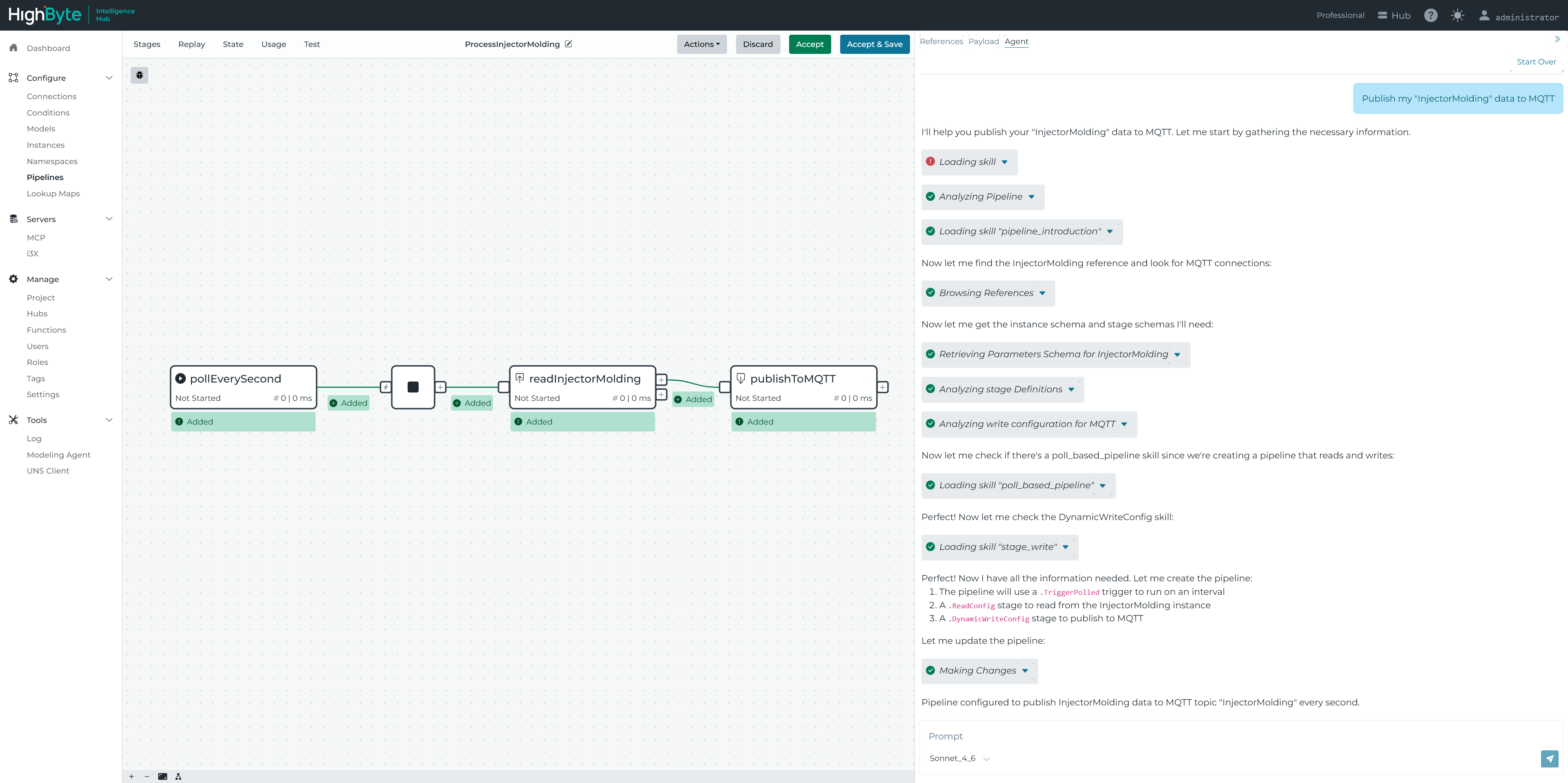
Chat History
The Agent maintains chat history during the session. Chat history is cleared when navigating away from the pipeline or clicking the “Start Over” button.
Debugging
The Agent can troubleshoot pipeline issues by analyzing debug information and logs.
Using Debug Data
To provide debug transaction data to the Agent:
- Click the Bug icon to show the Debug Menu
- Click Run to execute a debug session
Once a debug run is active, debug transaction information is automatically included with Agent requests.
With debug data available, the Agent can:
- Analyze event tree execution flow
- Examine event values and metadata passed between stages
- Identify failed data transformations
- Suggest fixes based on execution results
Example prompts:
- “Why is the filter stage not passing any events?”
- “What value is the model stage receiving?”
- “Help me fix the error in the transform stage”
Debug transactions expire. If the agent reports that the transaction no longer exists, run debug again before asking.
Asking Questions
The Agent can answer questions about the pipeline you have open, other pipelines in the project, and the parameters of the sources a pipeline uses.
Example prompts:
- “What is this Transform Stage doing?”
- “How does this pipeline compare to PipelineX?”
- “How is InputA using its parameters?”
- “What parameters does this sub-pipeline take?”
How It Works
Skills
The Agent loads built in guidance, called skills, before making changes. There is an introductory skill covering pipeline concepts, one per pipeline type (polled, event, and request/response), and one for stages that need specific handling, including JavaScript Transform, buffer stages, Switch, write stages, and namespace stages.
Loading a skill appears in the conversation as Loading skill. This is expected and is how the agent orients itself before editing a stage it has not touched yet.
Finding References
Rather than listing the entire project, the Agent calls a reference lookup tool to find the specific connections, inputs, outputs, instances, models, and namespaces a change needs. It can call this tool for every reference it needs at once, running several lookups in parallel.
Only references returned by this lookup are used in stage configuration, which keeps the agent from inventing a source that does not exist.
Available Tools
Tool activity is shown in the conversation with a description of the action rather than the tool name. The names below are the underlying tools, listed for reference.
Pipeline Configuration Tools:
get-current-pipeline- Retrieve the current (unsaved) pipeline being editedupdate-current-pipeline- Update the current pipeline with proposed changesget-pipeline- Retrieve the configuration of a specific pipeline by name
Schema Tools:
get-pipeline-stage-schema- Get the configuration schema for one or more stage or trigger typesget-dynamic-write-stage-schema- Get the Write New schema for a specific connectionget-instance-parameters- Get parameter and output schemas for instancesget-input-parameters- Get parameter schemas for connection inputsget-pipeline-parameters- Get parameter schemas for sub-pipelines
Debug Tools:
get-logs- Retrieve a list of recent log entriesget-debug-tree(when Debug is active) - Retrieve the execution event treeget-debug-tree-event(when Debug is active) - Get detailed data for a specific debug event
Other:
get-skill- Load a built in skillcreate-find-references-locator-worker- Locate sources and targets for a reference