Modeling Agent
The Modeling Agent can create/update Models, Instances, and Inputs. It can also browse OPC and SQL-based connections.
Using the Modeling Agent
- Navigate to Tools | Modeling Agent
- Select an AI Connection Input from the dropdown
- Enter a prompt describing what you want built
- Click Send
Attaching Files
Click the + button next to the prompt to attach files for the agent to use as context. A drawing, tag export, or schema can all be used as the basis for a model.
Textual files such as (.txt, .csv, .json, .xml, etc.) are supported by all models. Support for images and PDFs depends on the model selected; not all models accept them.
Very large files may be truncated, if this causes issues it is recommended to attach the relevant excerpt rather than a complete file.
Reviewing Changes
As the agent works, proposed changes collect in a summary below the conversation.
Accept applies every proposed change to the live project.
Reject discards the proposed changes and stops. Send another message explaining why the changes were rejected to continue.
View Changes opens the review screen described below.
Accept and Reject are all or nothing. Individual changes cannot be selected. To keep some changes and not others, reject the set and describe the correction in your next message.
Review Screen
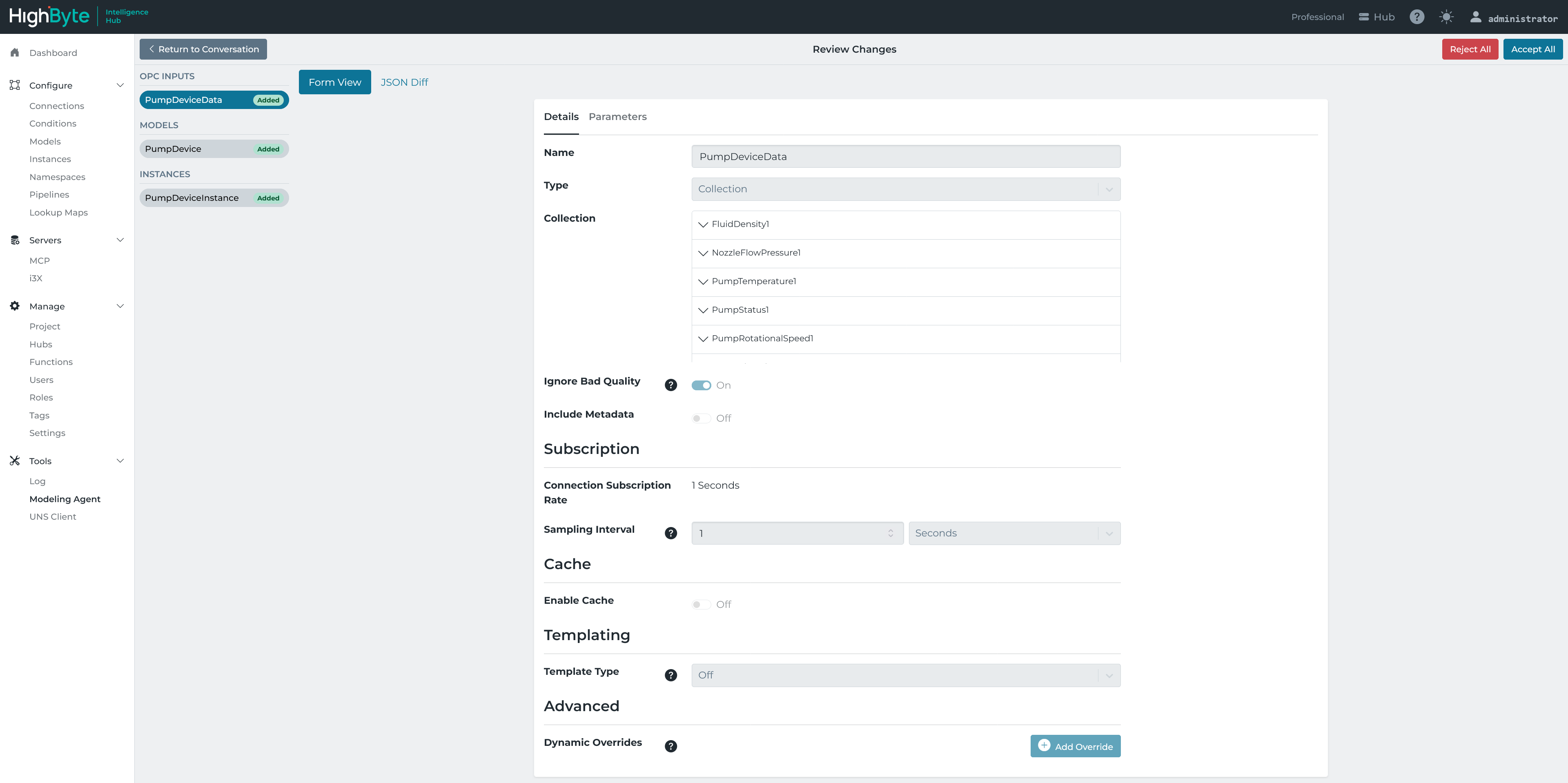
The review screen can be used to review configuration that was Added/Updated by the Agent. Updated changes will show a JSON diff that can be used to compare the state before/after the Agent’s proposed changes.
Accept All and Reject All are available from the review header, and Return to Conversation goes back to the chat.
Chat History
The Agent maintains chat history during the session. Chat history is cleared when navigating away from the pipeline or clicking the “Start Over” button.
Capabilities
The Modeling Agent can create and update:
- Models
- Instances
- Inputs
It can read, but not change:
- Connections
- Outputs
- Namespaces
- Pipelines
Connections cannot be created by the agent. A connection must already exist before the agent can browse it or add inputs to it. To create or modify a pipeline, use the Pipeline Agent .
Browsing and Reading Connections
Browsing allows the Agent to navigate through the data available on a given connection. This is helpful when having the Agent generate Inputs or when modeling a specific address space.
Browsing is supported for:
- OPC UA TCP
- The JDBC based connections documented under SQL
- Other SQL backed connections, including Databricks, Snowflake, BigQuery, Amazon Redshift, and TimescaleDB
Reading works on any connection. The Agent can read existing inputs, and can generate ad hoc inputs to discover information on that connection.
Available Tools
Configuration changes are split across scoped tools. Each kind of configuration can only be changed by the tool responsible for it, so a model is never written by the tools that configure instances, and inputs are never written by anything outside the connection they belong to.
Tool activity is shown in the conversation with a description of the action rather than the tool name. The names below are the underlying tools, listed for reference.
Modeling Agent (core tools available to the main agent)
list-connections- Get all available connectionslist-models- Get all available modelslist-namespaces- Get all available namespacesbrowse-references- Browse the reference catalog to discover sources and how to reference themsearch-references- Search the reference catalog by nameget-pipeline- Retrieve the configuration of a specific pipelinelist-files- List the files attached to the conversationcreate-model-worker- Open a model configuration tool callcreate-instances-worker- Open an instance configuration tool callcreate-connection-manager-worker- Open a connection configuration tool callanalyze-files-worker- Analyze a single attached fileget-worker-result- Retrieve the result of a configuration tool callresume-worker- Send a follow up instruction to a tool call that already ran
Model tools (available via create-model-worker; the only tools that can configure Models)
list-models- Get all available modelsget-model- Retrieve a model definitionconfigure-model- Create or update a model
Instance tools (available via create-instances-worker; the only tools that can configure Instances; also has elevated read access to references)
get-skill- Load built in guidance for instances and parameterslist-models- Get all available modelsget-model- Retrieve a model definitionbrowse-references- Browse the reference catalog for readable sourcessearch-references- Search the reference catalog by nameget-input-parameters- Get the parameter schema for a connection inputget-instance-parameters- Get the parameter and output schemas for an instancetest-read-reference- Test read a single referenceconfigure-instance- Create or update an instanceread-instance- Read an instancetest-read-instance- Test read an instance
Connection tools (available via create-connection-manager-worker; the only tools that can configure Inputs, and the only ones that can browse a connection)
get-skill- Load built in guidance for parameterslist-inputs- Get the inputs on this connectionget-input- Retrieve an input’s configurationread-input- Read an existing inputread-io- Perform an ad hoc read against the connectionbrowse- Browse the connection’s structure. Only present on connections that support browsingconfigure-inputs- Create or update inputs. Only present on connectors that expose an input schema
File analysis (available via analyze-files-worker) is the only tool that sees file contents directly. It has no further tools of its own; it receives a single file and returns a summary of it.
Example Prompts
- “Build a model based on the data returned by
{{Connection.HB_SQL.MESData}}” - “Browse
{{Connection.PlantOPC}}, find the press branches, and create a model, the inputs, and an instance for each press” - “Use the attached PDF to create a model for this asset, then map it to the tags on
{{Connection.PlantOPC}}” - “Convert the branch input
{{Connection.PlantOPC.Line1}}into individual inputs for each tag”