Import
Project import can be used to quickly import individual configuration objects or entire projects to the current hub. To import objects, perform the following steps.
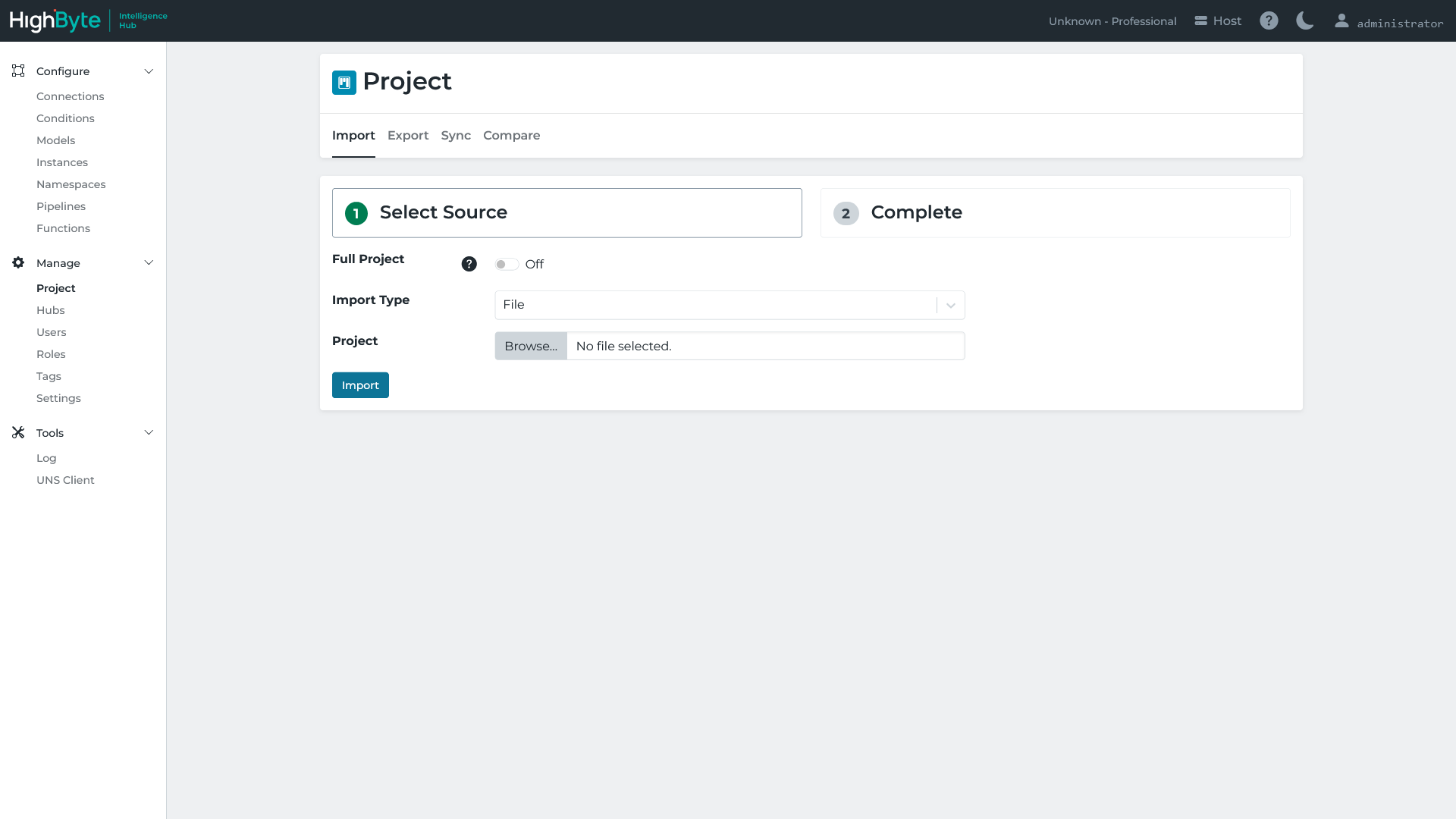
Navigate to Project in the configuration’s Main Menu and navigate to the Import tab.
To replace the current project with the imported project, select Full Project. If Full Project is disabled, a partial import will occur and all incoming objects will be merged up into the current project.
The Import Type specifies the method used to provide the project.
- If File is selected, a JSON file containing the project must be specified.
- If JSON is selected, a JSON payload containing the project must be copied in.
- If Git is selected, the project is imported from a deployment file stored in a Git repository. Click Autofill to populate the fields below from the
Git Backup
application setting, if configured, or fill them in manually. See
Git Backup
for more details on these fields.
Field Description Repository URI The URI of the Git repository. Authentication Type The authentication type used to access the repository. Branch The branch in the repository to import from. Deploy File The relative path in the repository to the deployment file to import.
Click Import.
The Complete tab shows whether project import succeeded for each object.
Project imports cannot be rolled back or reverted and partial success is possible if some objects fail to be imported.