MCP Services
The Intelligence Hub acts as an MCP Server, exposing MCP Services that AI Agents can use to access industrial data, execute operations and perform configuration and troubleshooting. This section covers how to enable MCP, and the different MCP Tools the hub exposes.
Enable the MCP Server
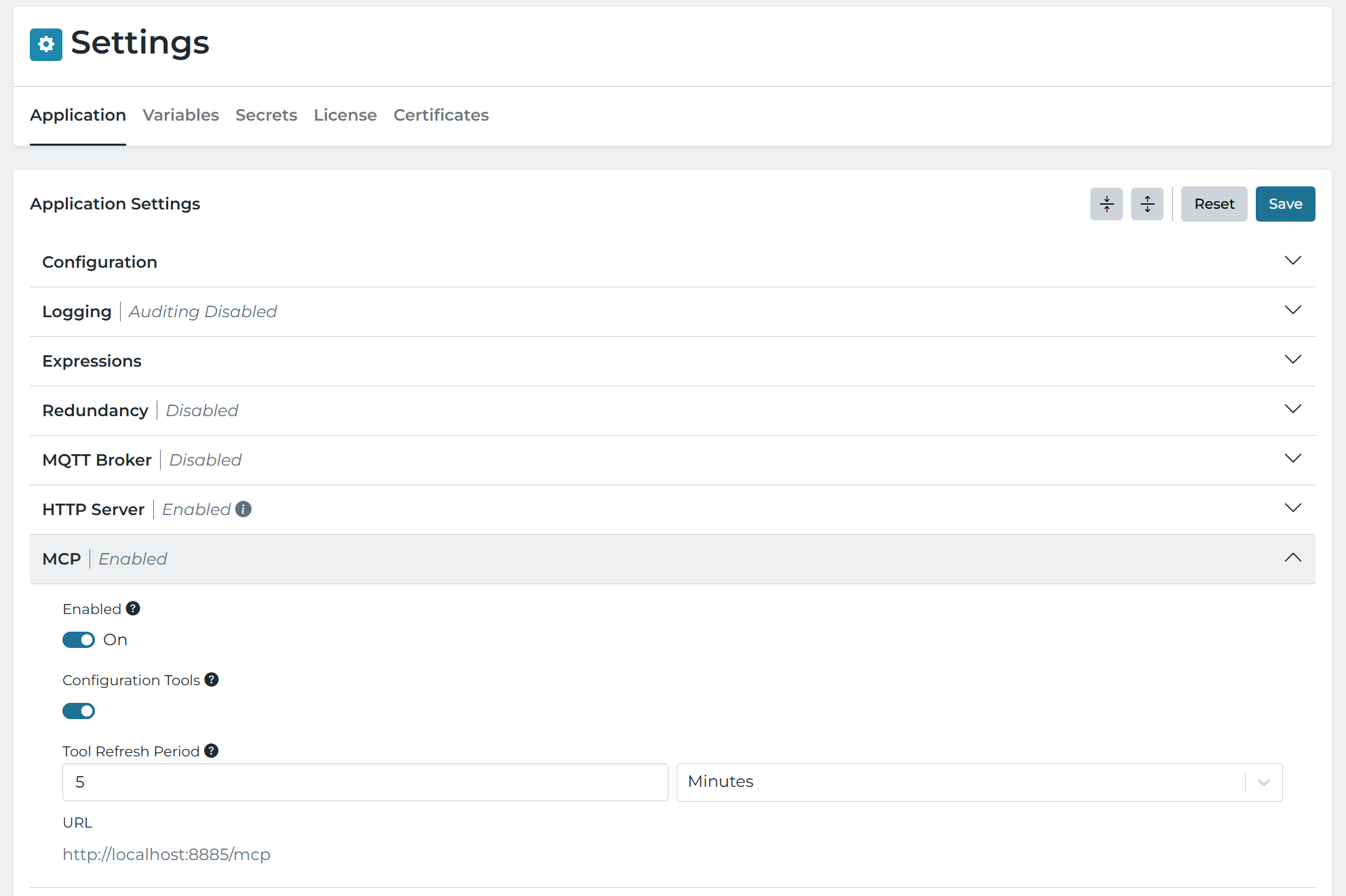
The MCP server can be enabled by navigating to the Settings page and enabling the server under the MCP section.
Clicking the “Disabled” button on the MCP page will take you directly to the MCP section of the Settings page.
The MCP server supports the Streamable HTTP protocol, and adheres to the 2025-03-26 revision of the MCP specification.
MCP Services
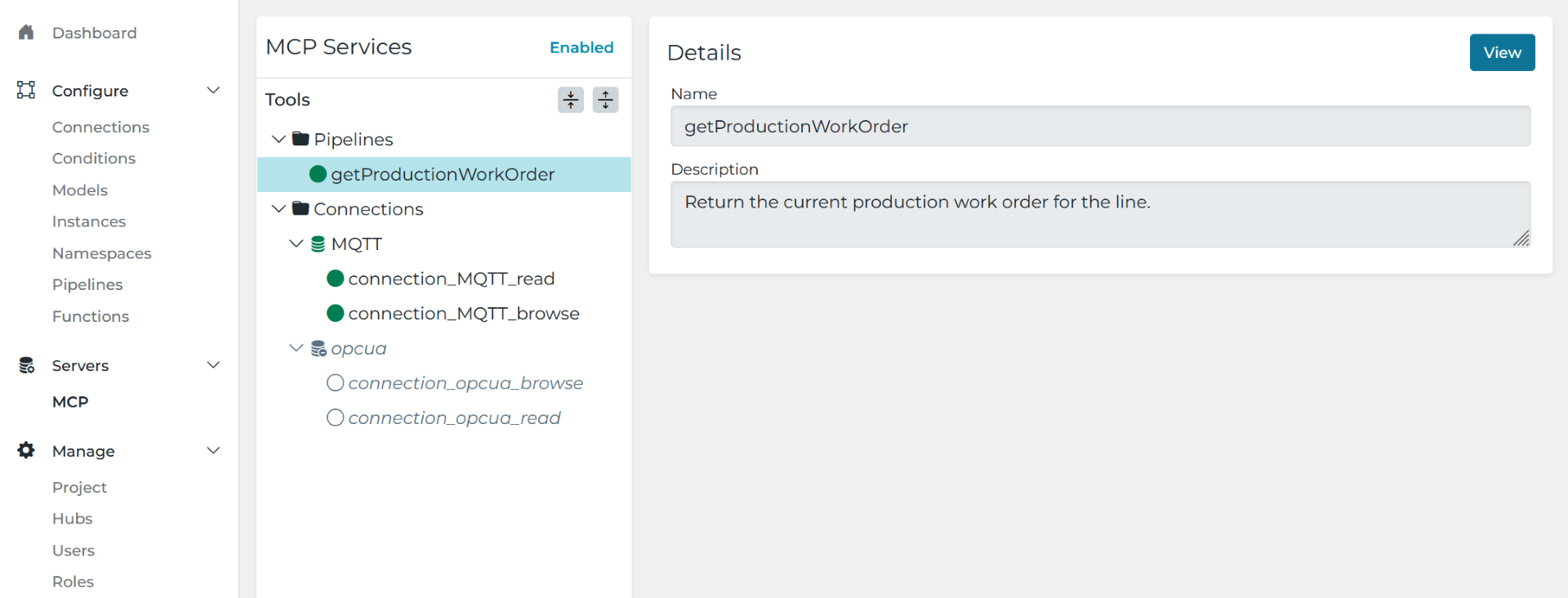
The MCP Services tab provides a view of all the MCP Tools configured in the project. Tools that are active and enabled are shown in green. Tools that are disabled are shown as grayed out. Clicking a tool shows the tool description. Clicking the View button on a tool takes you to the project configuration for the tool.
Pipelines
Pipelines allow you to build custom MCP tools that can access industrial data or perform operations. Each Pipeline with an API Trigger is shown as a tool under Pipelines in the MCP Services view. The pipeline name, description, and parameters are included as context to the AI Agent.
In this way, think of the pipeline description field as part of prompt engineering, where you’re instructing the LLM when and how to best use a tool. As an example, a tool description like “call this to create a work order” is very little context. But something more verbose like “call this to create a maintenance work order when you think work needs to be performed on a machine. Make sure you always include the machineID of the machine that needs the work and a verbose message on what work needs to be done and why you think it needs to be done” will likely yield better results. Prompt engineering is not a science, but generally the more context the better.
In addition to the API Trigger, Pipelines must also include a return stage to return a response to the AI Agent during a tool call.
Connections
Currently OPC UA, MQTT support out-of-the-box tools for basic data discovery and read-only operations. These tools are generally not meant
to be used in production, as they provide broad and read-only access to the data sources. However they are useful when using a chat bot or AI Agent
to ask questions of the data. To enable these tools, navigate to the Connection Settings for the connection and enable the Enable MCP Tools option.
The MCP Client Connection also supports the Enable MCP Tools option. When enabled, this connection includes all the tools provided by the underlying MCP Server it’s connected to.
Configuration
Configuration tools let AI Agents build and edit project configuration, and explore how configured project entities relate to each other.
Configuration tools are currently not shown in the MCP Services tree. They can be enabled by going to the Settings page and enabling the Configuration Tools option under the MCP section.
CRUD Tools
Create, read, update pipelines, connections, and their inputs/outputs.
| Tool | Actions | Description |
|---|---|---|
config_pipeline | list, get, create, update | Manage pipelines |
config_connection | list, get, create, update | Manage connections |
config_connection_io | list, get, create, update | Manage inputs/outputs on a connection |
config_model | list, get, create, update | Manage models |
config_instance | list, get, create, update | Manage instances |
Schema Tools
Look up stage, trigger, and connector schemas for use when building pipelines and connections.
| Tool | Actions | Description |
|---|---|---|
config_pipeline_schema | get_pipeline_outline, list_stages, get_stages | Get the pipeline schema (without stage and trigger types), list all stages and triggers, and get stage and trigger schema |
config_connection_schema | list, get, get_input, get_output | List all connection types. Get connection, input, and output schema |
config_model_instance_schema | get_instance, get_model | Get the model and instance schema |
Graph Tools
Read-only exploration of how configured entities (pipelines, connections, inputs/outputs) relate to each other.
| Tool | Actions | Description |
|---|---|---|
graph_schema | describe, get_schema | Semantic description of the graph model, or its live structural schema |
graph_query | cypher, sql | Run a read-only query against the project graph |
Address space tools
Helper for browsing existing sources/targets to reference in a pipeline’s Read/Write stages.
| Tool | Description |
|---|---|
config_reference_browse | Browse the project catalog (connections, instances, pipelines, system data, etc.) for use in Read/Write stage configuration |
config_test_read | Test read data sources. Options include existing_input, existing_instance, dynamic_input, and dynamic_instance. The dynamic reads allow the agent to test read inputs and instances that are not part of the project. |
Connecting MCP Inspector
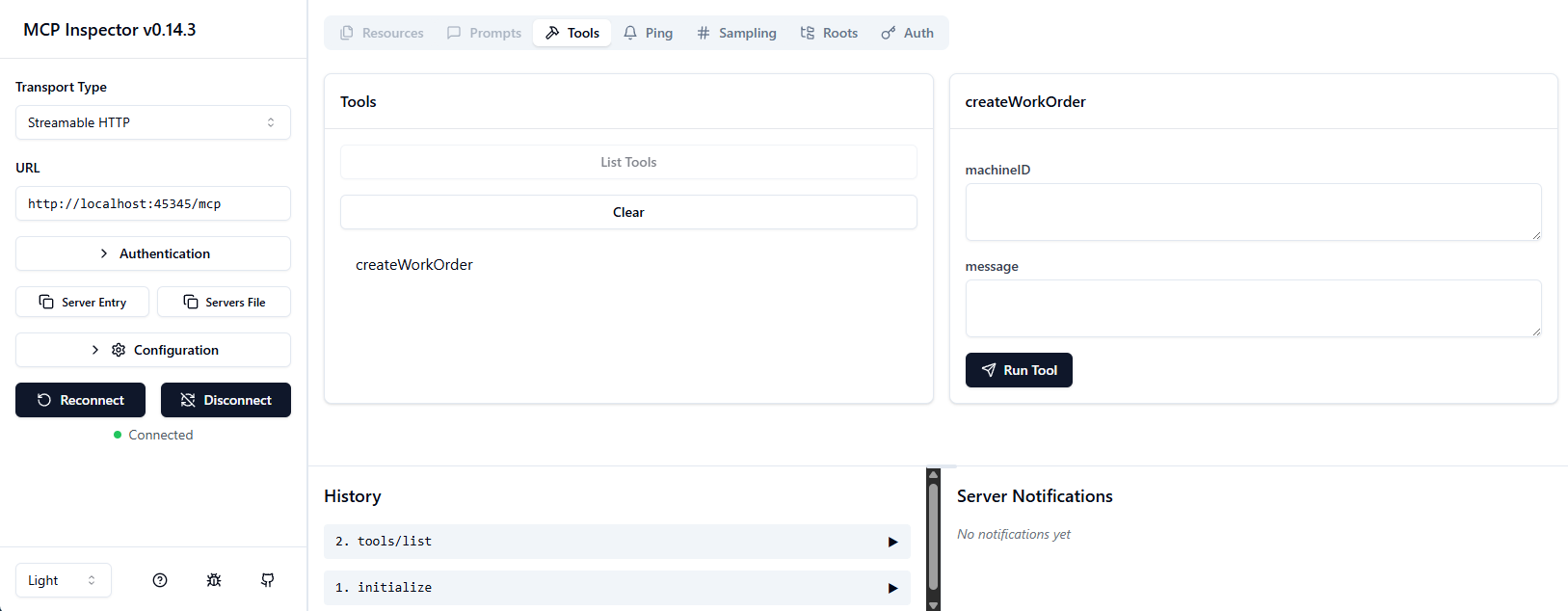
MCP Inspector is an open source tool used to connect to an MCP Server and view tools. To test using MCP Inspector do the following:
- Follow the instructions here to launch MCP Inspector https://modelcontextprotocol.io/docs/tools/inspector
- Change the Transport Type to Streamable HTTP
- Change the URL to point at the host and port configured in the
HTTP Serversection of the Settings page (http://localhost:8885 for the default host and port for our HTTP Server) - Append
/mcpto the URL, after the port - Expand Authentication and copy in the bearer token created (see Server Authentication) for details on creating the token
- Click Connect
- Click List Tools
- You should see all the pipelines with API Triggers enabled and the parameters for each API Trigger
Tool Refresh
The MCP server serves its tool list from a cache that it refreshes in the background on a configurable interval (the Tool Refresh Period setting, default 5 minutes) and immediately whenever a connection is saved. Connected clients won’t see those changes until they re-request the tool list, which you can generally force by one of the following:
- Restart the MCP server (toggle off/on). This will force clients to reconnect and re-request tools
- Restart the MCP Client (or agent)
- Prompt the agent/LLM to refresh
MCP does support a way to notify clients of tool changes, but this currently isn’t supported given that most clients don’t support it either. In general, tool changes only occur during development, and should be rare in production workflows.
Access Control
The MCP Server uses the existing roles and claims system to manage agent access.
The following table lists the MCP claim components required for each type of tool category. Use these when assigning roles/claims to users or API keys.
| Tool Category | Resource | Actions |
|---|---|---|
| Pipeline | pipeline | read, execute write |
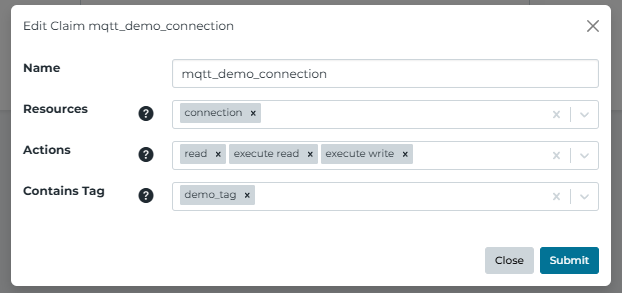
| Connection | connection | read, execute read, execute write |
| Config | pipeline | read, create, update |
User and API Key Setup
A new user can be created and assigned the appropriate roles and claims for MCP access. An API Key can be generated for this user, which can be used as a Bearer token to authenticate requests to the MCP Server. See REST Data Server for details on creating the API Key.
Additional information on managing users, roles, and claims is available in the Users and Roles documentation.
Example
Suppose you want an agent to only have access to a specific MQTT Connection you configured. Tag-based access control enables this restriction:
- Create a tag (see Tagging for details) and assign it to the specific MQTT connection
- Define a role with a claim that specifies the required resources, actions, and tags
- Assign the role to a user
- Generate an API key for the user and use it as a Bearer Token for MCP Client authentication against the HighByte MCP Server