i3X Server
The Intelligence Hub acts as an i3X Server, exposing . This section covers how to enable i3X, and the different i3X objects the hub exposes.
Enable the i3X Server
The i3X server can be enabled by navigating to the Settings page and enabling the server under the i3X section.
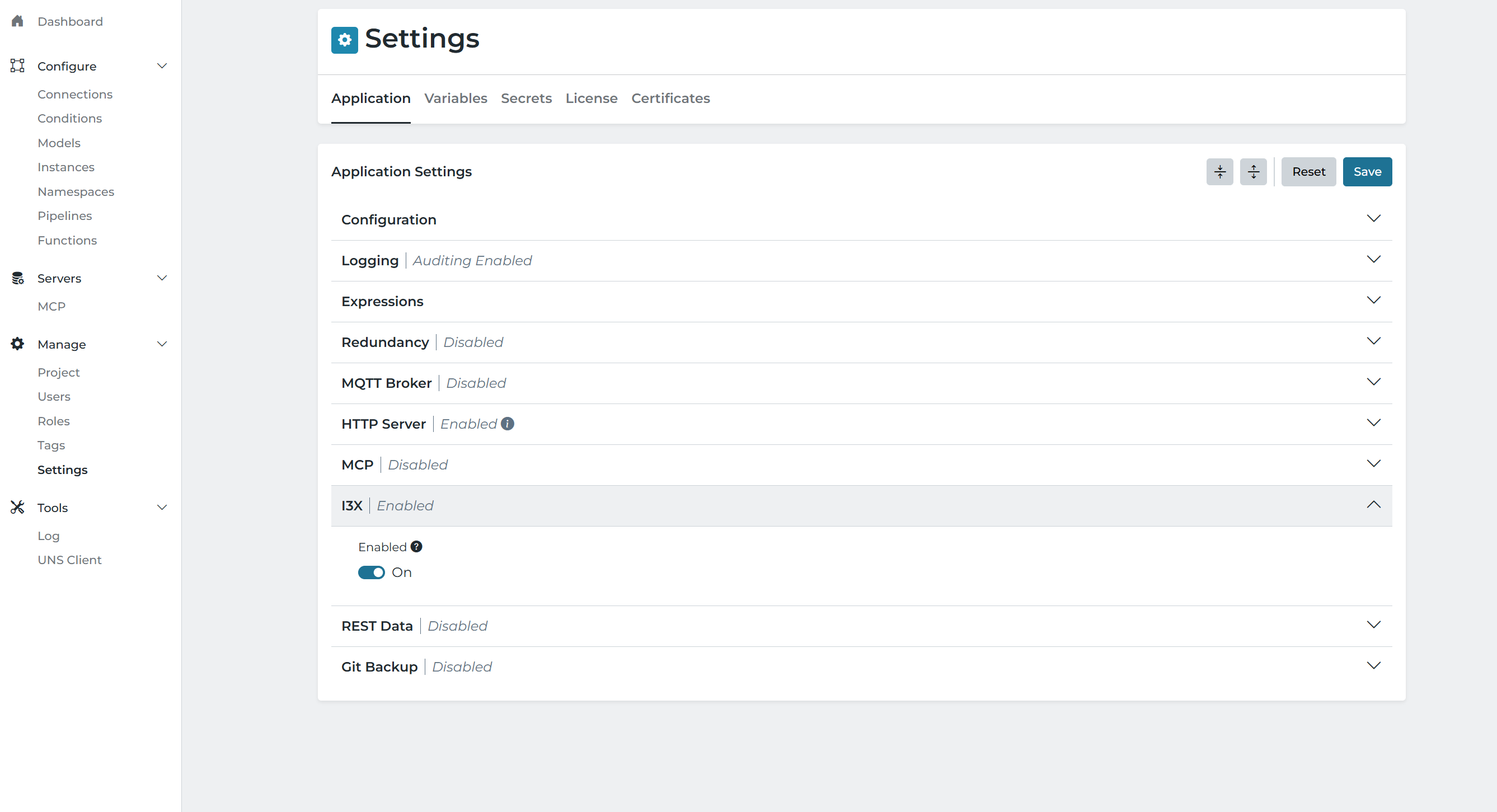
The i3X server currently supports the /v0 spec of i3X.
Connecting i3X Explorer
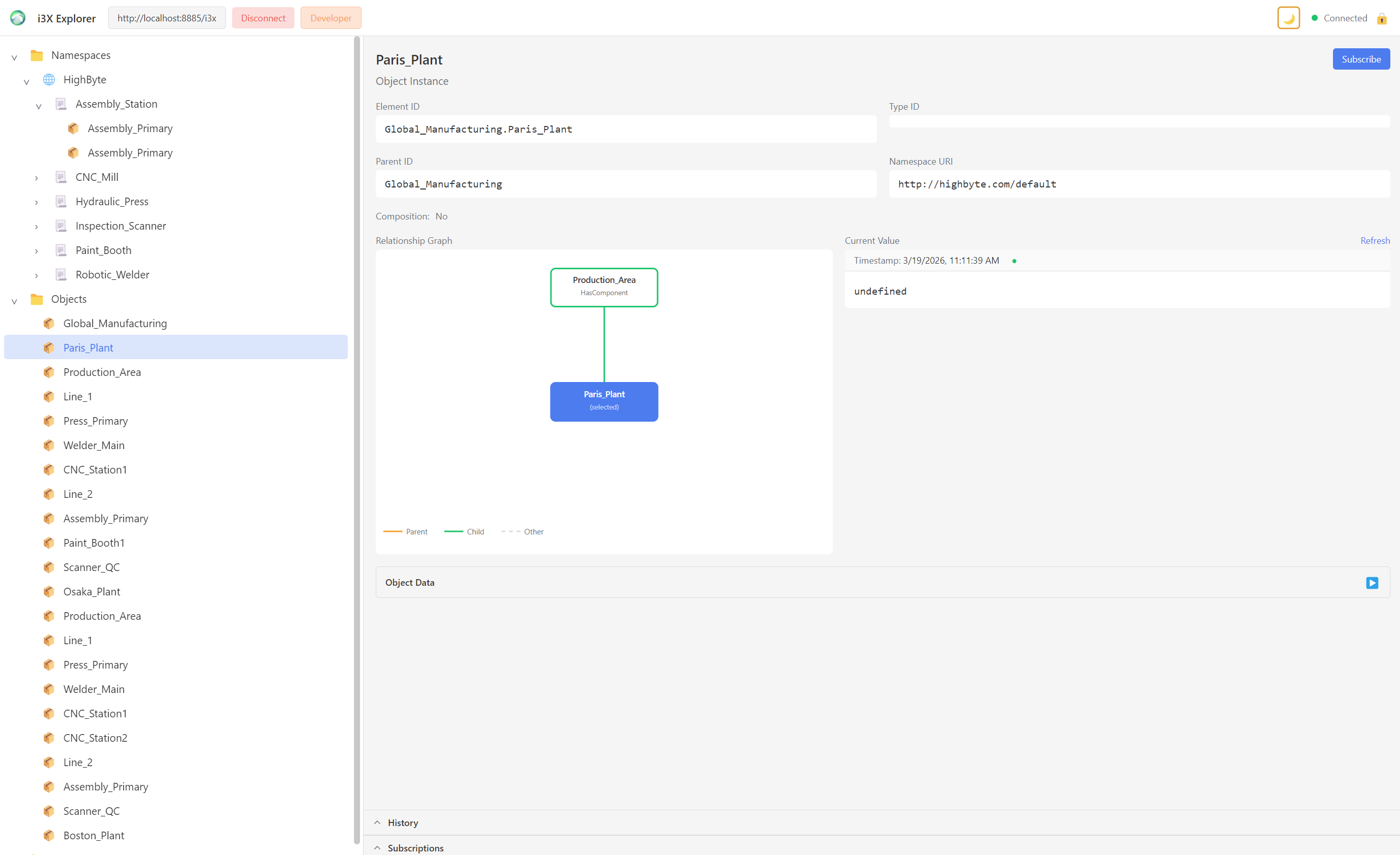
i3X Explorer is a cross-platform desktop client for browsing and monitoring i3X API Servers. To test using i3X Explorer, do the following;
- Follow the instructions here to download and install i3X Explorer https://acetechnologies.net/i3X/
- Change the URL to point at the host and port configured in the
HTTP Serversection of the Settings page (http://localhost:8885 for the default host and port for our HTTP Server) - Append
/i3xto the URL, after the port - Under Authentication, select
Bearer Tokenand copy in the bearer token created (see Server Authentication for details on creating the token) - Click Save
- Click Connect
- You should see all the configured… blanks
Features
Namespaces
Your configured Intelligence Hub Models are available under the i3X “Namespaces” tree, exposed as ObjectTypes. A model’s Model Version drives its ObjectType’s version field.
Objects
Your configured Intelligence Hub Instances are available under the i3X “Objects” tree.
Hierarchy
Your configured Namespace in Intelligence Hub is available under the i3X “Hierarchy” tree. If the Default HighByte Namespace is enabled, it will appear here also.
Pipeline Hooks
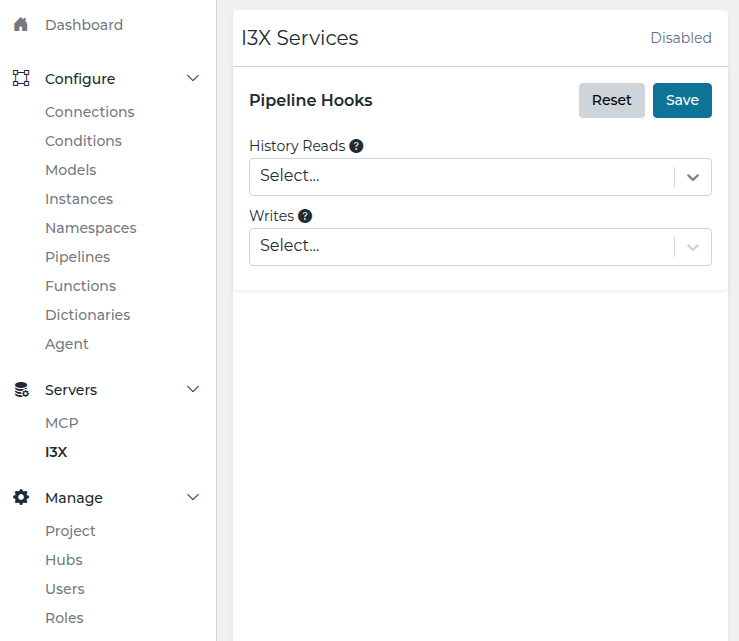
By default the i3X Server exposes the current value of your Models, Instances, and Namespace. Pipeline Hooks extend the server to handle i3X object history reads and object writes by delegating them to pipelines that you define. Configure the hooks on the i3X Services page, reached from the i3X item in the primary navigation.
Each hook references a pipeline that must have an enabled Callable trigger. Leave a hook blank to disable that capability.
| Hook | Description |
|---|---|
| History Reads | A pipeline that returns historical values for a given element id, start time, and end time. When set, i3X history read requests are routed to this pipeline. |
| Writes | A pipeline that writes the current value of an element to its backing source. When set, i3X write requests are routed to this pipeline. |
After selecting a pipeline for each hook, click Save.
Each hook pipeline receives a JSON array as its input event value and must return a JSON array. The shapes are described below. Timestamps are ISO 8601 strings, and quality is one of Good, GoodNoData, or Bad.
History Reads Pipeline
When an i3X client requests history, the Intelligence Hub calls the configured pipeline once per request, passing every requested element as the input event value. The input is a JSON array with one entry per element:
[
  {
    "elementId": "string",
    "startTime": "2026-01-01T00:00:00Z",
    "endTime": "2026-01-02T00:00:00Z",
    "maxDepth": 0
  }
]
| Field | Type | Description |
|---|---|---|
| elementId | string | The id of the element to read history for. |
| startTime | string | Start of the requested time range, as an ISO 8601 timestamp. |
| endTime | string | End of the requested time range, as an ISO 8601 timestamp. |
| maxDepth | integer | The maximum element hierarchy depth requested by the client. |
The pipeline must return a single flat JSON array of history entries. Each entry is tagged with its elementId, so one response can contain entries for multiple elements and any number of values per element. Entries do not need to be in any particular order.
[
  {
    "elementId": "string",
    "value": 42.0,
    "quality": "Good",
    "timestamp": "2026-01-01T00:05:00Z"
  }
]
| Field | Type | Description |
|---|---|---|
| elementId | string | The element the value belongs to. Must match a requested element id. |
| value | any | The historical value. May be any JSON type. |
| quality | string | The value quality. One of Good, GoodNoData, or Bad. |
| timestamp | string | The time of the value, as an ISO 8601 timestamp. |
If the pipeline returns no entries for a requested element, or the pipeline is unavailable, that element resolves to an empty history with GoodNoData quality. Unknown element ids return a 404.
Writes Pipeline
When an i3X client writes one or more element values, the Intelligence Hub calls the configured pipeline once, passing every valid write as the input event value. The input is a JSON array with one entry per element:
[
  {
    "elementId": "string",
    "value": {
      "value": 42.0,
      "quality": "Good",
      "timestamp": "2026-01-01T00:05:00Z"
    }
  }
]
| Field | Type | Description |
|---|---|---|
| elementId | string | The id of the element to write. |
| value.value | any | The value to write. May be any JSON type. |
| value.quality | string | The quality of the value. One of Good, GoodNoData, or Bad. |
| value.timestamp | string | The timestamp of the value, as an ISO 8601 timestamp. |
The pipeline must return a JSON array of results, one per input entry and in the same order as the input:
[
  {
    "elementId": "string",
    "success": true,
    "message": ""
  }
]
| Field | Type | Description |
|---|---|---|
| elementId | string | The element the result applies to. |
| success | boolean | Whether the write succeeded. |
| message | string | Optional detail, typically the failure reason when success is false. |
If no write pipeline is configured, write requests return a 501 Not Implemented. Unknown element ids return a 404.
Access Control
The i3X Server uses the existing roles and claims system to manage agent access.
The only required claim that is required is:
| Resource | Actions |
|---|---|
| namespace | read |
User and API Key Setup
A new user can be created and assigned the appropriate roles and claims for i3X access. An API Key can be generated for this user, which can be used as a Bearer token to authenticate requests to the i3X Server. See REST Data Server for details on creating the API Key.
Additional information on managing users, roles, and claims is available in the Users and Roles documentation.