Models
Models provide a standard definition for an asset, process, product, system, etc. A model consists of a collection of attributes that have a unique name and data type. For example, a model for a Motor might have on/off state as a boolean, speed as a float, and location as a string.
Models abstract away the specifics of the data source. Once modeled, it doesn’t matter if the motor comes from vendor A or B, the data for the motor looks the same and contains all the context required for the use case.
Create a Model
Models can also be created and updated by the Modeling Agent, which can build a model from a schema, an uploaded document, or the structure of a data source. To create one by hand, follow the steps below.
- Navigate to Models in the configuration’s Main Menu. Here you can add, edit, and view models. To add a model, click the New Model button.
- Enter a Name of the model, followed by optional Description, Model Version, and a Group As folder to categorize the model. Click Next to continue.
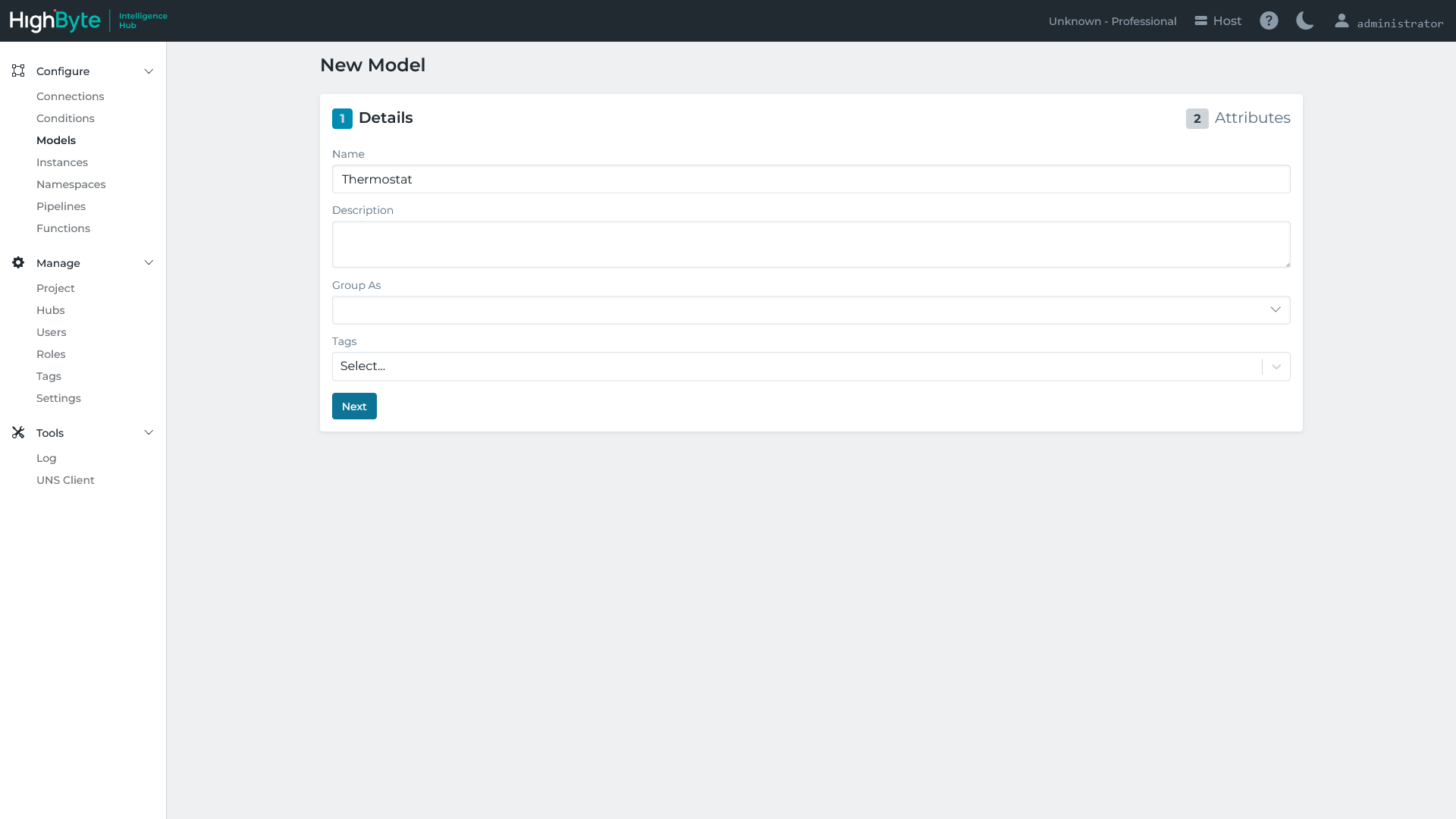
The model itself has the following settings.
| Model Settings | Description |
|---|---|
| Name | The name for the model. |
| Description | Optional description of the model. |
| Model Version | Optional version identifier for the model, useful for tracking changes to the model definition over time. |
| Group As | Optional folder used to categorize the model. |
- Click New Attribute and set the attribute’s Name and Type. Additional attribute properties are described below. Continue to add additional attributes that should be assigned to this model and click the Submit button when finished.
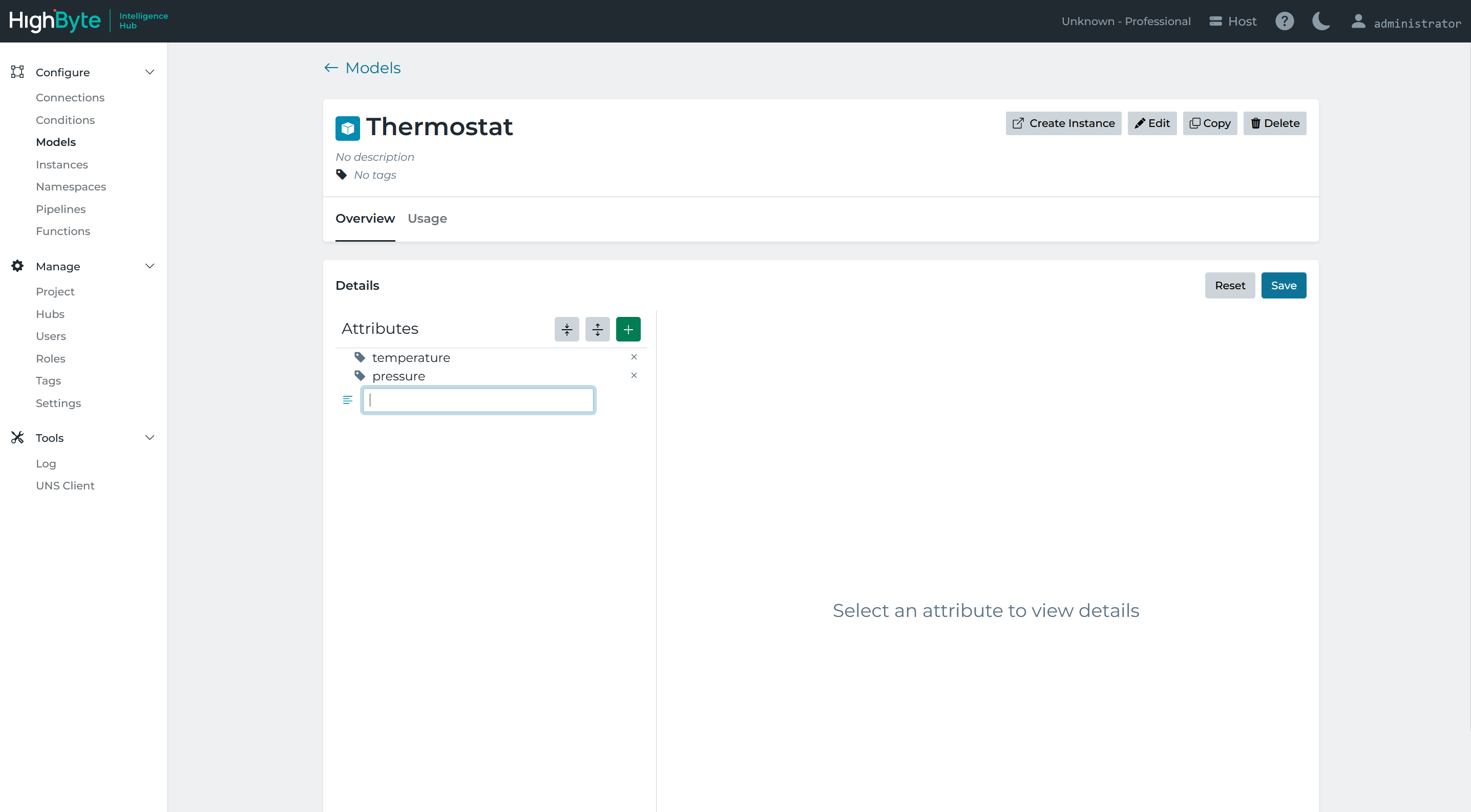
Attributes have the following settings.
| Attribute Setting | Description |
|---|---|
| Name | The name for the attribute to be included in the model. |
| Attribute Type | Attributes can be Simple (string, numeric, etc), Modeled (child Model definition), or Object (hierarchy). Object types mean the model contains inline hierarchy. Simple and Modeled types have additional configuration described below. |
| Simple Type | Only shown if the Attribute Type is Simple. Select the primitive type (ex. Int, Real32, String, File, Enum, etc). |
| Model | Only shown if the Attribute Type is Modeled. Select the child model to reference. Use this to compose model definitions using sub models. |
| Array | Specifies if the attribute is an array of values of the specified type. |
| Required | Specifies if an instance of this model must populate the attribute. Only required attributes will generate errors when they cannot be populated. |
| Nullable | If enabled the attribute can output a value of “attributeName”: null in the payload |
| Description | Optional description of the field. |
| Default Value | Default value to use for the attribute if the Instance does not override the value. The value is expressed in JSON form. Strings must be quoted. |
Enum Attributes
The Enum Simple Type constrains an attribute’s value to a fixed, user-defined list of allowed values, entered as a JSON array in the Enum Values field. The list can mix value types: strings, numbers, booleans, and null are all supported. At least one value is required to save the attribute.
For example:
["active", "inactive", "pending", "suspended"]
Model Composition
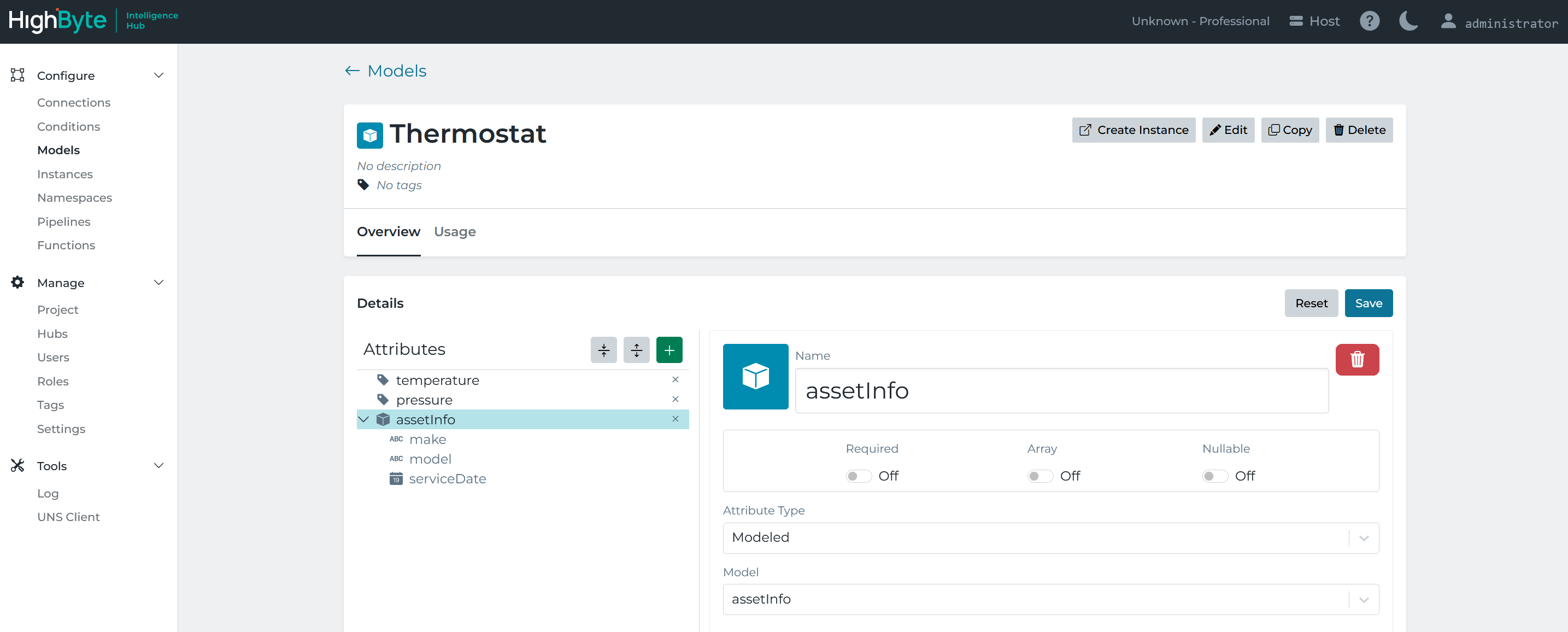
When setting an attribute to a Modeled type, the parent Model is now composed of the child model. This is shown below where the Thermostat model has an attribute that is an assetInfo model. The assetInfo model attributes are shown in the tree, but they are read only. When creating an Instance based on the parent model, the Instance contains all the attributes from the parent and child models.