Git Backup
The Git Backup feature automatically backs up Intelligence Hub configuration to a Git repository. The backup is stored as a single JSON file and can be used by Git Deployment Integration.
A backup can be performed manually using the Backup Now button whether or not scheduled backups are enabled. When Enabled is on, backups also run automatically on the Backup Schedule. During manual or scheduled backups, changes to the hub configuration are pushed to the specified branch of the repository. When there are no changes since the previous backup, no commit is pushed. The commit message differentiates scheduled and manual backups. For manual backups, the Intelligence Hub user must have Settings:execute_write permission and the commit message will contain the user that performed the backup. See Users and Roles for more information.
Git Backup settings support the use of System and Environment references. Changes to System Variables will be detected automatically and cause the Git Backup schedule to be restarted. See System Variables and Environment Variables for more information.
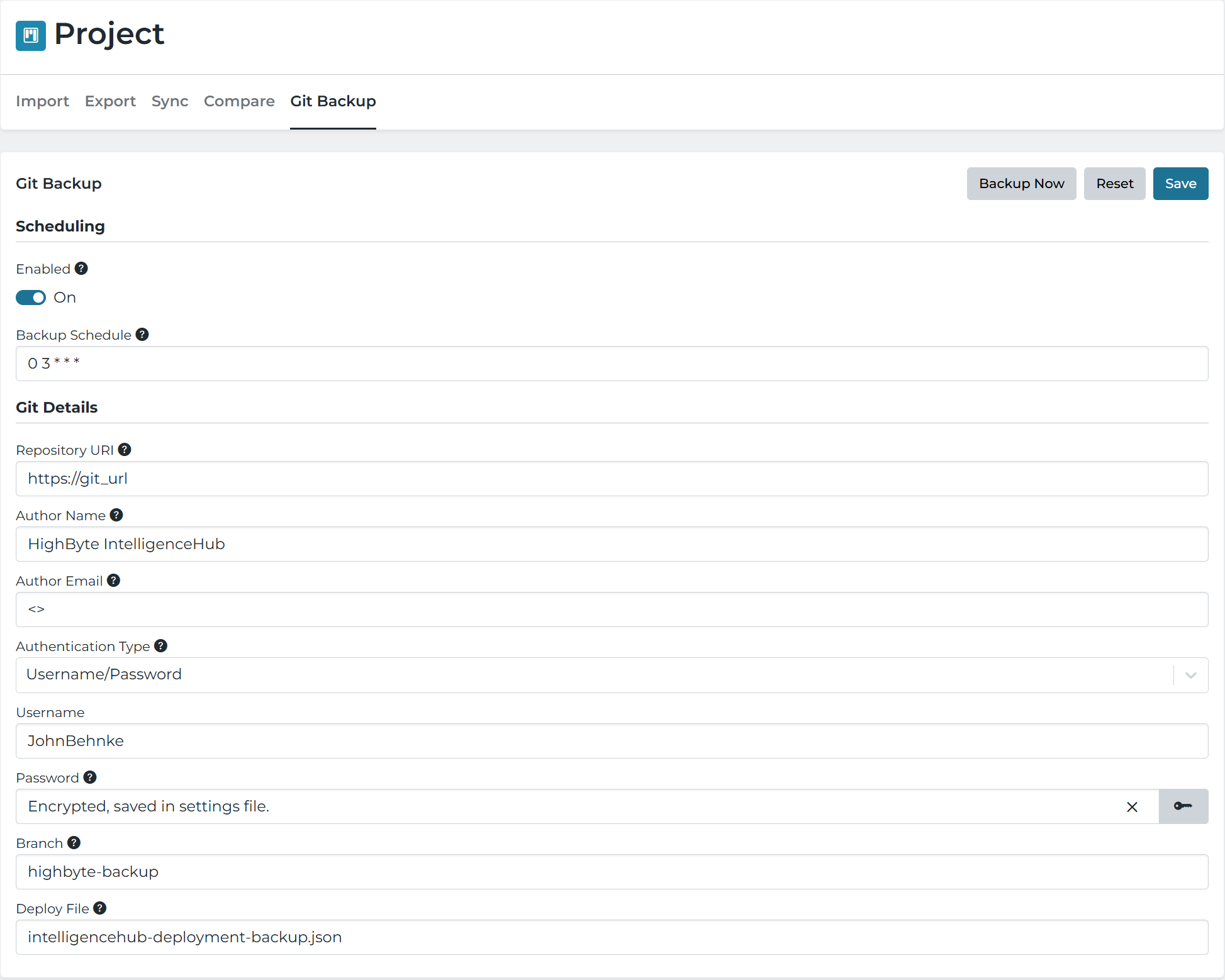
| Setting | JSON Property | Description |
|---|---|---|
| Enabled | settings.backup.mode | Determines whether backups run on a schedule. Default is Disabled. Enabled ( scheduled): backups run on the Backup Schedule and can also be run manually.Disabled ( disabled): only manual backups can be performed. |
| Backup Schedule | settings.backup.cronSchedule | The cron schedule to run the backup. Default is daily at 3am UTC. Only available when Enabled is on. |
| Repository URI | settings.backup.repo.uri | The URI of the Git repository. |
| Author Name | settings.backup.repo.author | Author name to use for commits. |
| Author Email | settings.backup.repo.email | Author email to use for commits. |
| Authentication Type | settings.backup.repo.auth.type | Determines how the hub authenticates with the repository. Default is None. None ( none): no authentication.Username/Password ( pass): authenticates with a username and a password or personal access token.GitHub App ( githubApp): authenticates as a GitHub App. See GitHub App Authentication. |
| Username | settings.backup.repo.auth.username | Git username to use for password authentication. Only available for Username/Password. |
| Password | settings.backup.repo.auth.password | Git password (or personal access token) to use for password authentication. Supports Secrets. Only available for Username/Password. |
| App ID | settings.backup.repo.auth.appId | The App ID or Client ID shown on the GitHub App settings page. Only available for GitHub App. |
| Installation ID | settings.backup.repo.auth.installationId | The ID of the GitHub App installation that has access to the repository. Only available for GitHub App. See GitHub App Authentication. |
| Private Key | settings.backup.repo.auth.encryptPrivateKey | The contents of the .pem private key generated for the GitHub App, or a Secret containing it. The key is stored encrypted. Only available for GitHub App. |
| API Endpoint URL | settings.backup.repo.auth.apiUrl | Optional. The GitHub REST API URL used to request access tokens. Leave blank for github.com. Set this for GitHub Enterprise Server (https://HOST/api/v3) or for a proxy or gateway in front of the GitHub API. Only available for GitHub App. |
| Branch | settings.backup.branch | Branch in the repo to use for backup. |
| Deploy File | settings.backup.deployFile | The relative path in the repository to save the configuration. |
GitHub App Authentication
GitHub App authentication lets the Intelligence Hub access a repository as a GitHub App instead of as a user. Access is limited to the repositories the app is installed on and the permissions granted to the app, and it does not depend on a personal access token that expires or is tied to an employee’s account.
The Intelligence Hub uses the app’s private key to request a short-lived installation access token from GitHub when the repository requires authentication. Tokens are cached and refreshed automatically before they expire. The same authentication type is available for Project Import, Project Export, and Git Integration.
To set up a GitHub App:
- In GitHub, navigate to Settings > Developer settings > GitHub Apps > New GitHub App. For an organization, use the organization’s Settings > Developer settings > GitHub Apps.
- Enter a unique name and a homepage URL, and clear the Active checkbox under Webhook.
- Under Repository permissions, set Contents to Read and write. Read-only access is enough when the app is only used for Project Import or Git Integration.
- Click Create GitHub App, and note the App ID (or Client ID) on the app’s settings page.
- Under Private keys, click Generate a private key. A
.pemfile is downloaded. Store it securely. - Click Install App, then Install on the account or organization that owns the repository. Choose Only select repositories and select the repository.
- Note the Installation ID at the end of the URL shown after installing, for example:
- Personal account:
https://github.com/settings/installations/<ID> - Organization:
https://github.com/organizations/<org>/settings/installations/<ID>
- Personal account:
- In the Intelligence Hub, set Authentication Type to GitHub App, and enter the App ID, Installation ID, and the contents of the
.pemfile as the Private Key.
Errors obtaining a token, such as an invalid private key or an incorrect App ID or Installation ID, are written to the Event Log. These messages never include the private key or access token.
https://github.com/myorg/hub-backup.git. SSH URIs are not supported. Use HTTPS; see the warning below for HTTP.http instead of https, credentials are sent unencrypted and a warning is written to the Event Log each time the repository is accessed.